
How do I complete a background check to verify my identity?
Updated
TeachMe.To requires coaches to complete a background check to verify their identity and ensure a safe experience for Students. The entire process happens inside the TeachMe.To Coach App and is handled securely through DOTS, our payout and verification partner.
Here’s exactly how to complete it.
1. Start Your Background Check in the Coach App
Step-by-Step
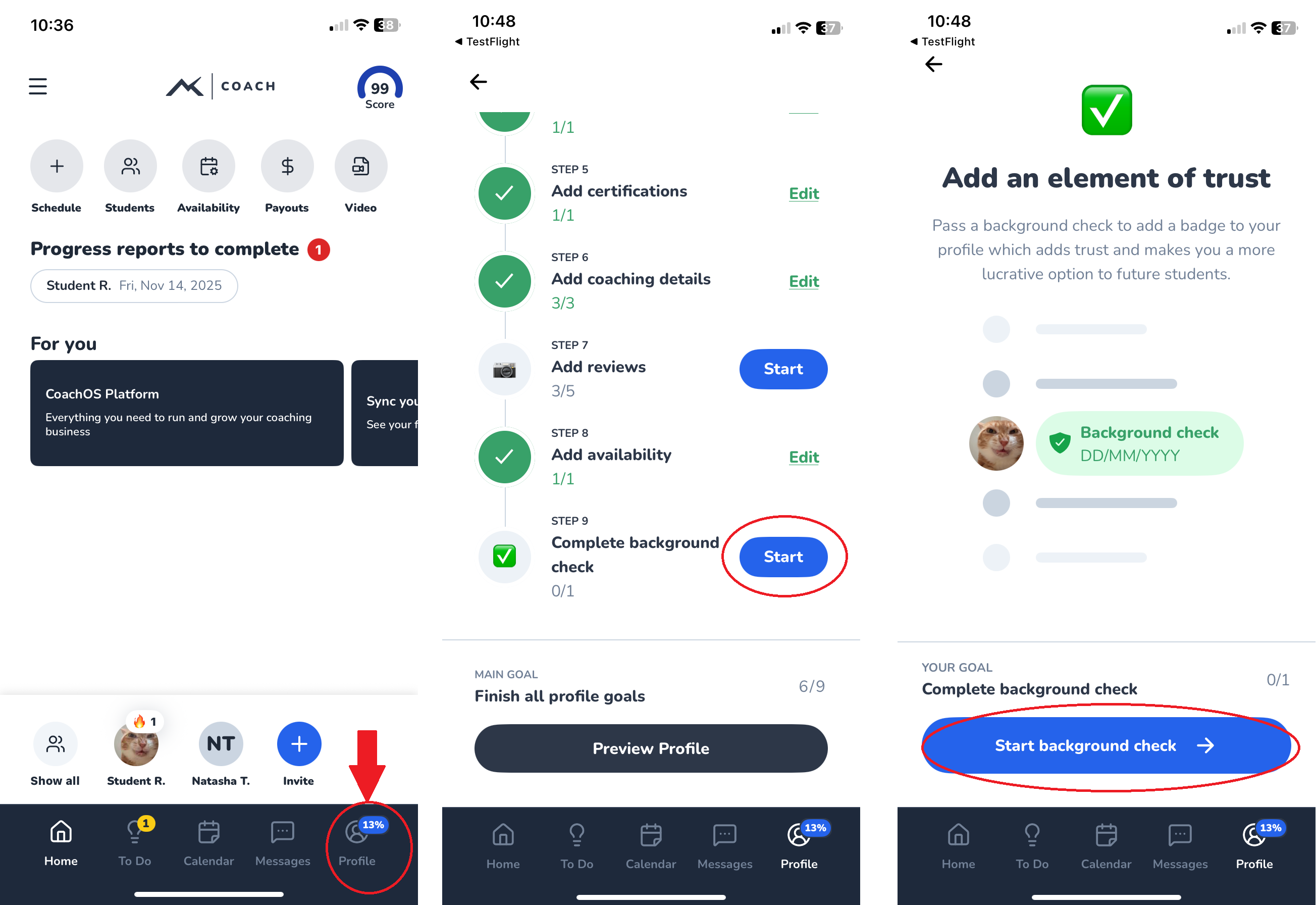
- Open the TeachMe.To Coach App
- Tap Profile (bottom right)
- Scroll to the last onboarding step: “Complete background check”
- Tap Start
- When prompted, tap Start background check again
This will route you to a secure DOTS form inside the app.
If you coach Outside the U.S.: Use an international check through our vendor Checkr, or submit a valid check from your current employer.
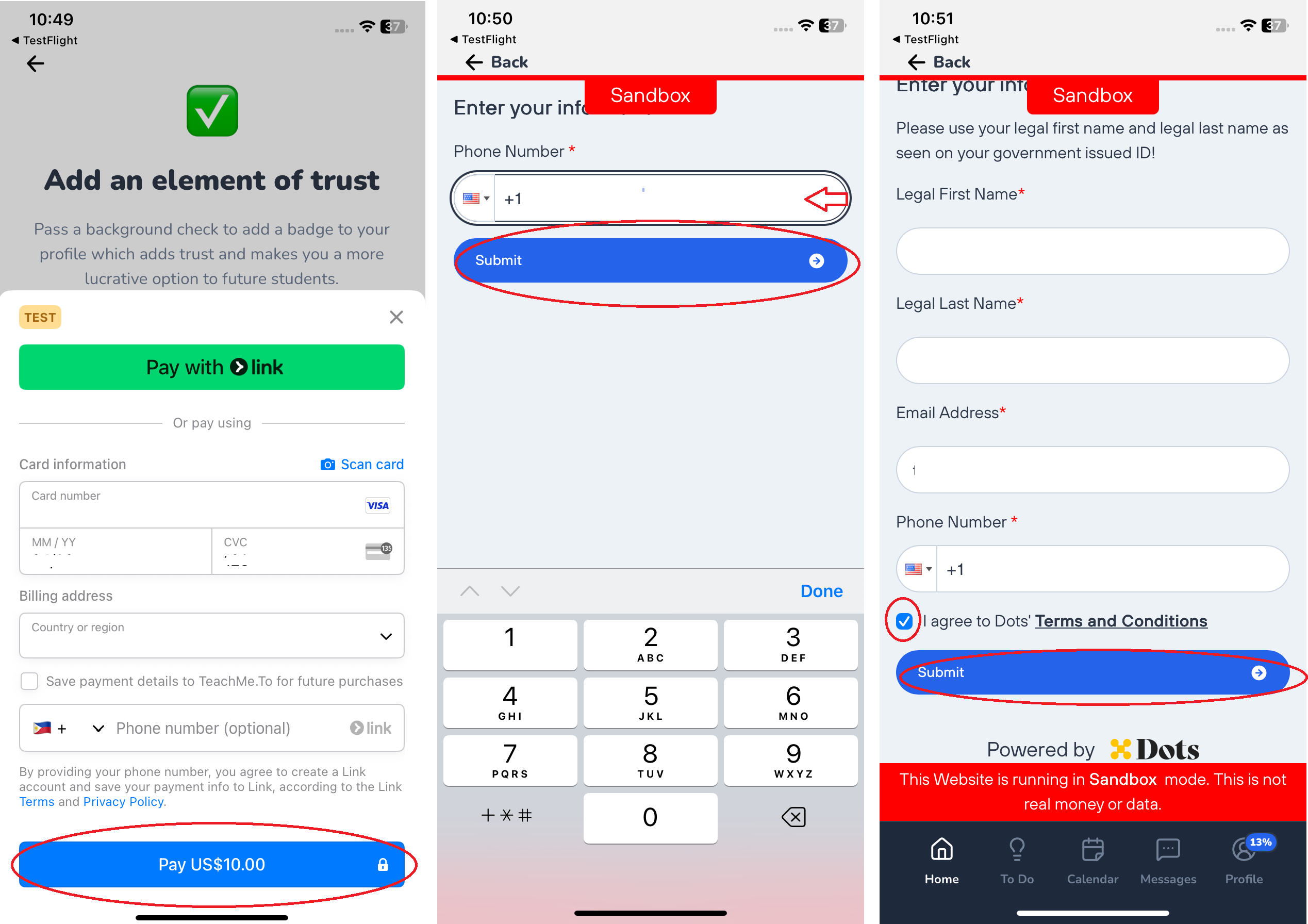
2. Enter Your Personal Information in the DOTS-Secured Form
DOTS will ask for:
- Legal name
- Email address
- Phone number
- Social Security Number (SSN)
- Billing & card information to pay the $10 background check fee
All information is encrypted and processed securely.
Tip: Have your SSN ready before starting. It makes the process much faster.
3. Submit and Verify Your Identity
After you enter your details:
- Tap Submit
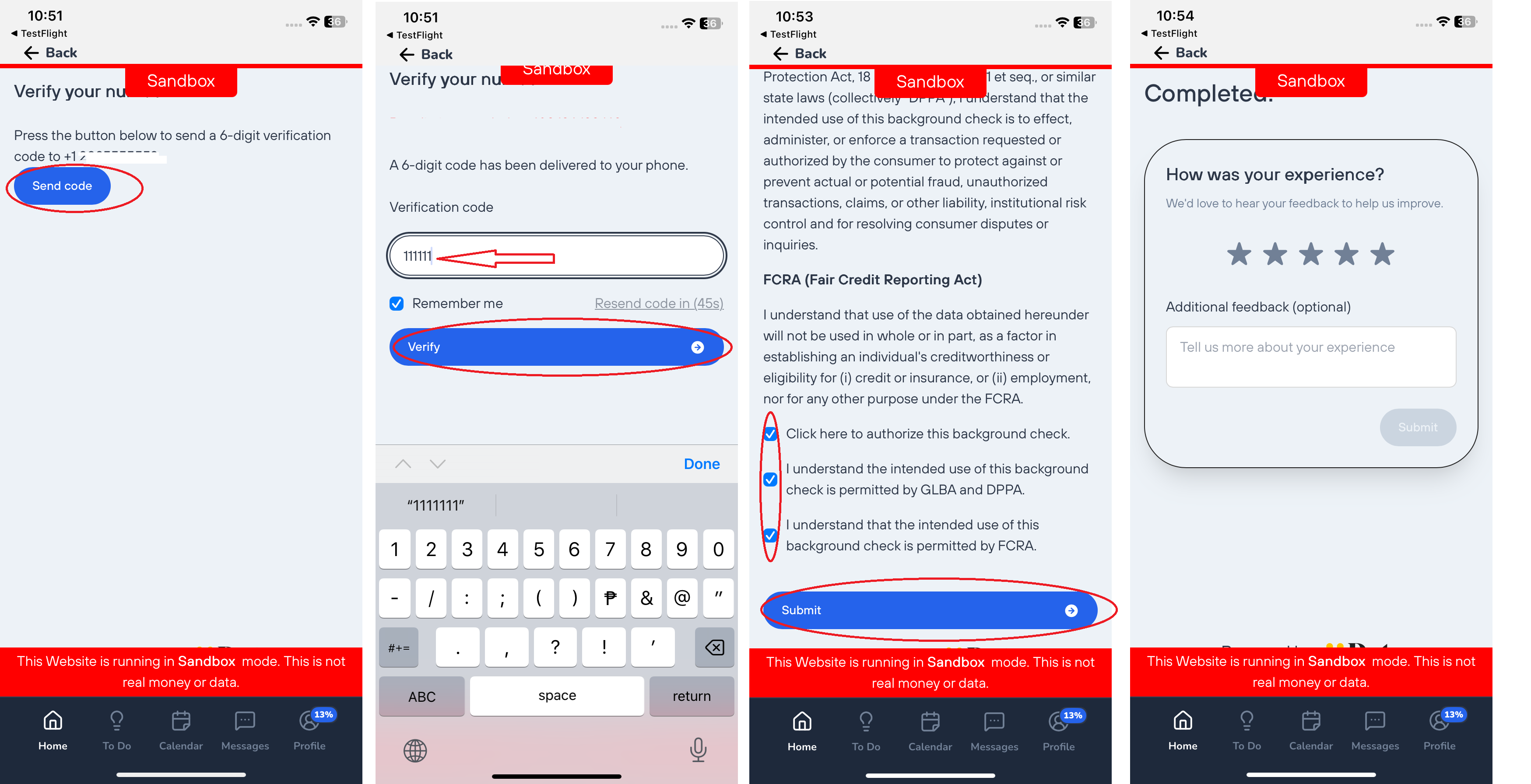
- You’ll receive a 6-digit verification code (OTP) via text
- Enter the OTP to confirm your identity
- Review the required disclosure and authorization
- Tap Submit again to finalize the background check
Make sure you have good reception, since you must receive an SMS code to proceed.
4. Processing Time
You’ll see a confirmation screen once your submission is complete.
Background checks typically process:
- Within a few minutes, but
- May take up to 24 to 48 hours depending on DOTS verification volume
Once approved, your profile will update automatically in the Coach App.
Troubleshooting Tips
- Ensure your phone number matches the one used for your Coach App login
- Keep the app open while waiting for the OTP
- Make sure your card has sufficient funds for the $10 fee
- If the form doesn’t load, check your internet connection or try switching from Wi-Fi to data
See Images below as a guide
Still need help? Our customer support team is always here to help. Contact us.