
How do I set up my profile?
Updated
Once your application is approved, the next step is to complete and polish your TeachMe.To coach profile. This profile is what Students use to decide whether to book with you, so completing it fully and thoughtfully is key to attracting your first clients.
Everything you need is managed directly inside the TeachMe.To Coach App.
1. Download the TeachMe.To Coach App
Use the links below to install the official Coach App:
iPhone: https://tmtl.ink/apple
Android: https://tmtl.ink/android
Once installed, log in with the same email and password you used during your coach application.
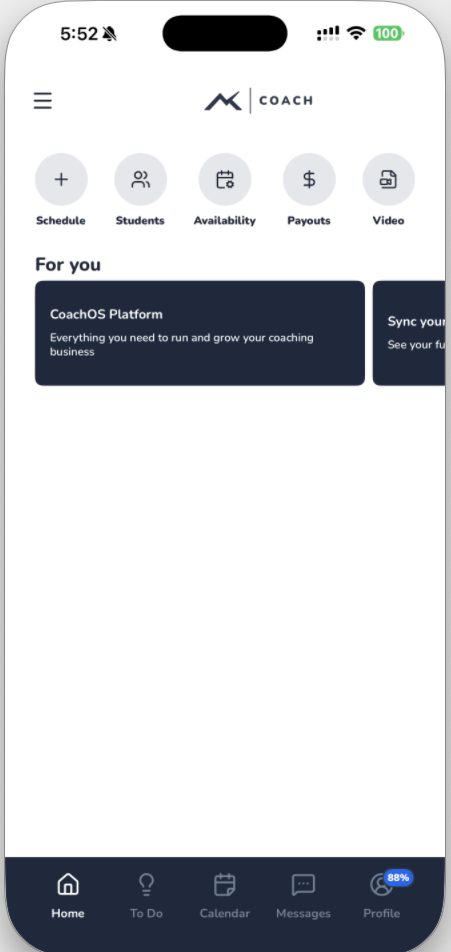
2. Tap “Profile” in the Bottom Navigation
Open the app and look for the Profile tab at the bottom of the screen.
This is where you’ll complete each required onboarding step and where you’ll update your information in the future.
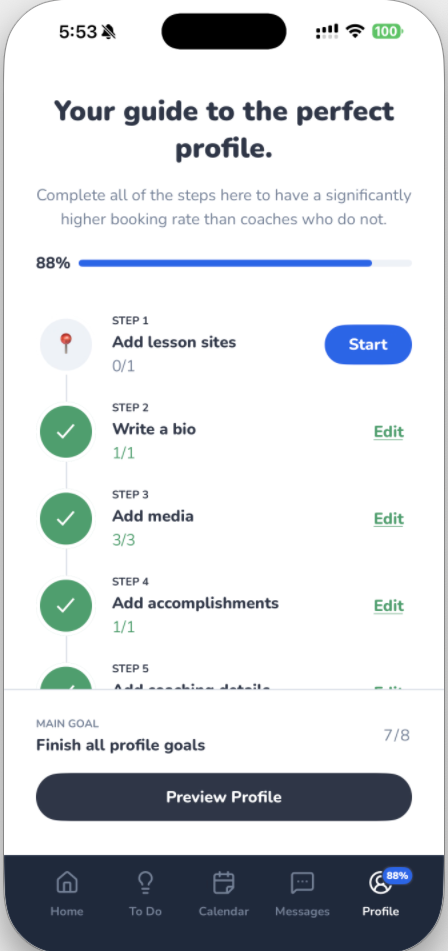
3. Complete Each Step Until You Reach 100%
Your coach profile has several required sections.
Tap each step and follow the prompts. Your progress will increase until you reach a full 100% completed profile.
You can edit or update these details at any time.
Here’s what you’ll complete:
✔ Lesson Locations
Add all the locations where you’re able to teach (parks, courts, gyms, ranges, pools, etc.).
The more lesson sites you add, the more Students you’ll appear for in search results.
✔ Bio
Review or refine the automatically generated bio.
Make it friendly, professional, and unique to your teaching style.
✔ Photos
Upload high-quality photos, including:
- A clear headshot
- Optional action or teaching photos
This significantly increases booking rates.
✔ Accomplishments
Highlight certifications, competitive achievements, awards, or years of experience.
✔ Coaching Details
Add details like:
- Teaching style
- What Students can expect
- Whether you can provide equipment
- Age ranges you teach
✔ Reviews (after you start coaching)
Your reviews will appear here once Students begin booking with you.
✔ Availability
Set the days and times you’re available to teach.
Students will only see time slots that match your availability.
✔ Background Check
Complete your background check if prompted.
This step helps build credibility and trust with Students.
Why Completing Your Profile Matters
A fully completed profile helps you:
- Appear higher in search results
- Attract more Students
- Build credibility from day one
- Show teaching locations clearly
- Set accurate booking expectations
Coaches with polished profiles tend to receive significantly more bookings.
Still need help? Our customer support team is always here to help. Contact us.